 Cowork
Designing GPS mode: flying in the first minute
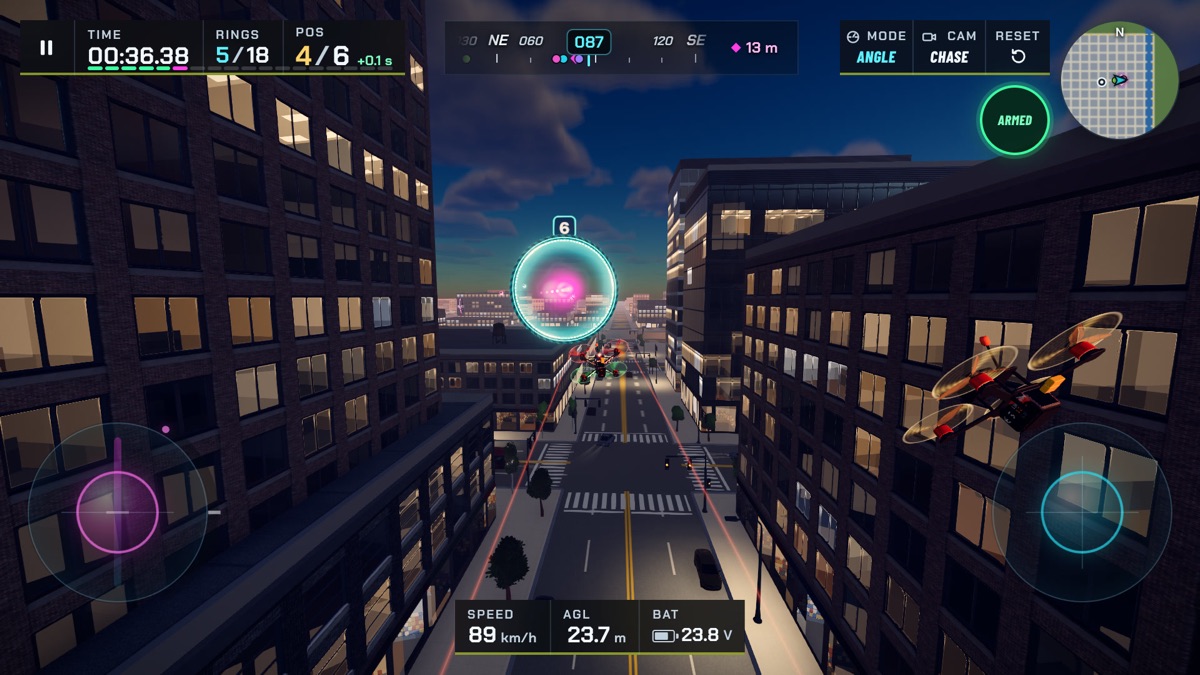
Most people who open Drone Sim have never flown an FPV quad. If the first thing they get is Acro mode, they crash in two seconds and leave. So we built GPS mode, which flies a lot like a camera drone's GPS mode: let go of the sticks and the quad stops and waits.
This post is about how we built it, and one bug that made us rethink it.
Same quad, one more layer
We did not want GPS mode to be a different, fake physics. It runs on the same simulated quad and the same Betaflight-style flight controller as Angle and Acro. GPS is just an extra loop on top that moves the sticks for you. Acro is pure rate control, Angle levels the quad and limits it to 55 degrees, and GPS adds height hold and position hold above that.
That means what you learn in GPS still counts later. The quad has the same weight, the same motors and the same drag when you switch modes.
No arm switch
On a real quad you arm the motors with a switch, and only with the throttle low and the quad level. That is a good safety rule and a terrible first minute. In GPS mode there is no arm step. The quad arms itself when the race or Free Fly starts, and the ARM button is hidden on touch screens.
We kept one check: if the quad is tipped over more than 60 degrees it will not arm, and the screen says "Tipped over, tap RESET". Angle and Acro still need low throttle and a level quad, like the real thing, and the tutorial still teaches manual arming for when you move up.
Holding height
In GPS mode the throttle stick is not power, it is a climb rate. Centre the stick and the quad holds its height. Push up and it climbs at up to 3 m/s, pull down and it sinks at up to 2.5 m/s. There is a small dead band around the centre so a loose thumb does not make it drift, a bit wider on Quest controllers.
The height reading has a bit of noise in it, like the barometer on a real quad, so the hold is not perfectly glued to one line. We also correct the thrust when the quad leans over, up to 45 degrees. We tested every drone flying at full stick for ten seconds, and all of them stay within 0.7 m of the height they were holding.
Holding position
The right stick sets a speed over the ground instead of a tilt. Let go and the quad brakes to a stop by itself. The braking is limited so it never leans harder than a real quad would: 45 degrees at most, usually 15 to 35 degrees when stopping, and about 1.4 g including drag.
In the classic two-stick layout, full stick starts at 8 m/s, about 29 km/h. Keep holding it and the speed target creeps up by 2 m/s every second, so you can go fast on a long straight without leaving GPS mode. Holding full throttle does the same for climbing, adding 1 m/s every second.
The 110 km/h bug
The first version of that speed ramp had no limit. Then we tried the 7 inch long range quad, held full stick down a long course, and watched it pass 110 km/h and start to sink.
Nothing was broken in the physics. At that speed the air rushing through the props eats most of the lift, so the quad had to lean so far forward that it could not hold its height anymore. A real quad would do the same.
The fix was simple: the ramp stops as soon as the quad starts losing height, and backs off if it keeps sinking. So GPS mode now goes as fast as each drone can really go and still fly level, and no faster.
A calmer option in VR
On Meta Quest, fast speed changes in front of your eyes can make people feel sick. If you turn on VR Comfort in Settings, GPS speed is fixed at 4 m/s with no ramp. With it off, VR flies the same as on a screen.
Moving on from GPS
GPS mode is there to get you flying, not to keep you there. Once you can get through a course, try Angle, then Acro. The flight modes guide explains the steps, and you can switch mode any time from the MODE button.
You can try it now in the browser at dronesim.coworkgamestudio.com. Next week: how we tuned the six drones so each one feels different.
Have a question about this article or found something that does not match the game? Write to us at support@coworkgamestudio.com.