 Cowork
 Rates and expo explained: tuning Drone Sim's sticks
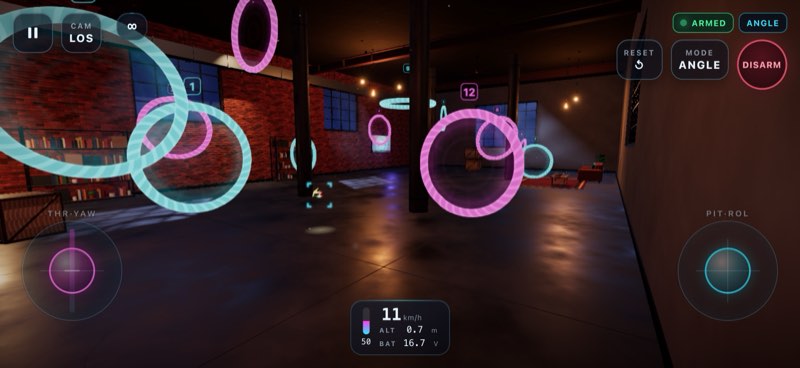
"Rates" decide how fast a quad rotates for a given stick movement. They matter most in Acro mode, where the stick sets a rotation speed rather than an angle, and they are one of the first things experienced FPV pilots change on a new quad. Drone Sim uses the same model as Betaflight's Actual rates, so what you learn here carries over to a real flight controller. You find them under Settings → Rates & sensitivity, with a live curve for each axis.
The three numbers
Each axis (roll, pitch and yaw) has three values:
- Center sensitivity, in degrees per second: how fast the quad rotates for small stick movements around the centre. Low values make the quad calm and precise near centre.
- Max rate, in degrees per second: how fast it rotates with the stick pushed all the way. 400 °/s means a full flip takes under a second; 670 °/s is a typical freestyle setting.
- Expo, from 0 to 1: how the curve gets from one to the other. More expo keeps the centre soft for longer and saves the speed for the last part of the stick travel.
The useful idea is that the centre of the stick is for precision (lining up a gate, holding a line) and the end of the stick is for big moves (a hard turn, a flip). Good rates give you both without one getting in the way of the other.
Roll and pitch rates apply in Acro. In GPS and Angle the quad self-levels and the right stick sets a tilt angle up to the max tilt instead. The yaw rate applies in all three modes.
The presets
Drone Sim ships with three presets, and an Auto setting that picks Beginner when you fly with touch or the keyboard and Intermediate when you use a gamepad or transmitter. Thumbs on glass and keys that are either on or off need a softer centre than a proper analogue stick.
| Preset | Center (°/s) | Max rate (°/s) | Expo | At 30 % stick |
|---|---|---|---|---|
| Beginner | 50 | 400 | 0.50 | about 31 °/s |
| Intermediate | 120 | 560 | 0.45 | about 58 °/s |
| Pro | 200 | 670 | 0.54 | about 80 °/s |
For comparison, Betaflight's own default Actual rates (center 70, max 670, expo 0) give about 75 °/s at 30 % stick. The Pro preset is close to a classic freestyle setup. Beginner still allows a full-stick flip, at 400 °/s, but stays very gentle near centre.
Edit any value and the preset becomes Custom, so your own numbers are kept. There is also an option to link roll and pitch so they change together, which is how most pilots run them.
How to tune your own rates
- Start from a preset that matches your controller, and fly a few laps in Acro.
- Twitchy in a straight line? Lower the center sensitivity, or raise expo a little.
- Can't turn tight enough, or flips feel slow? Raise the max rate.
- Change one value at a time, by a small step, and fly the same course again. Your best time and split times per ring tell you whether the change helped.
There is no single correct setting. Racers often use lower rates for smooth lines; freestyle pilots tend to use higher max rates for fast flips. What matters is that the quad does what you expect it to.
The throttle curve
The same screen has the throttle settings, which matter in Angle and Acro where the throttle is raw:
- Mid is the output at the centre of the throttle stick. On Auto it is set to the hover point.
- Throttle expo flattens the curve around mid, giving you finer control near hover.
- Throttle limit caps the output at full stick, while centre stick still hovers. Useful if full power feels too wild.
- Raw throttle expo shapes the throttle in Angle and Acro around the hover point.
Gamepad pilots can also choose whether the throttle is on a stick or on the right trigger, and set the stick deadzone in the controller setup.
From the sim to a real quad
Because the model is the same, you can copy your Drone Sim numbers into Betaflight's Actual rates and the stick feel will be close. A real quad also depends on its weight, motors and tune, so treat the sim numbers as a starting point and adjust from there.
Have a question about this guide or found something that does not match the game? Write to us at support@coworkgamestudio.com.