 Cowork
 Getting started with FPV in Drone Sim
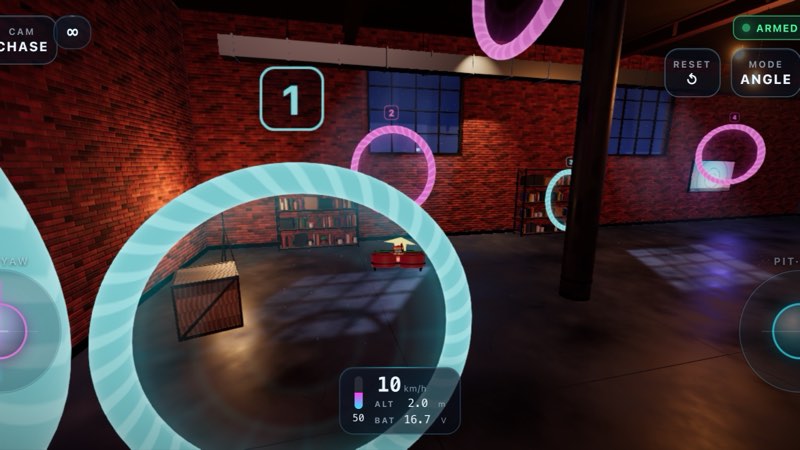
FPV stands for first-person view: the pilot of a real FPV quad wears goggles that show a live picture from a camera on the drone, and flies as if sitting in it. It is one of the most exciting ways to fly, and also one of the hardest to learn, because a racing quad does exactly what the sticks tell it and nothing more. A simulator lets you make every beginner mistake without breaking propellers. This guide walks through a first session in Drone Sim, from opening the game to flying your first race.
1. Open the game
Drone Sim runs in a web browser. Open dronesim.coworkgamestudio.com/play/ on a computer, phone or tablet. There is nothing to install and no account to create. Your settings and your best times are saved in the browser on your own device, so the game remembers them next time without sending them anywhere.
On a computer you can fly with the keyboard, a gamepad or a USB RC transmitter. On a phone or tablet the game shows two on-screen sticks. Whatever you use, the game shows the matching button names in its prompts.
2. Start on the Training Field
A first-time pilot starts on the Training Field: an open meadow in daylight with three big rings, plenty of room and nothing to crash into. This is where the tutorial runs. It has twelve short steps, and each one waits until you have actually done the thing it asks before moving on:
- Welcome – a short introduction.
- Arm the motors – with the throttle all the way down, press arm (Space on a keyboard, A on a gamepad, the ARM button on touch).
- Take off – raise the throttle until the quad leaves the ground.
- Hover – hold a steady height for a few seconds.
- Yaw – turn on the spot, both left and right.
- Pitch and roll – fly a few metres forwards, backwards, left and right.
- Land – come down gently and settle on the ground.
- Disarm – stop the motors.
- GPS, Angle and Acro – switch through the three flight modes.
- Cameras – try each camera view.
- Your first ring – fly through a ring.
- Tutorial complete.
3. Know your sticks
A quad has four controls. Throttle sets how hard the motors push, so it moves the drone up and down. Yaw turns the nose left and right. Pitch tilts the nose down to fly forwards or up to fly backwards. Roll tilts the quad sideways to slide left or right.
Drone Sim uses the same stick layouts as real RC transmitters. The default is Mode 2, the most common layout: the left stick is throttle (up and down) and yaw (left and right), the right stick is pitch and roll. Modes 1, 3 and 4 are available in the settings if you already fly a different layout. On a keyboard with Mode 2, W and S are throttle, A and D are yaw, and the arrow keys are pitch and roll.
4. Hovering is the whole game
Every manoeuvre starts from a stable hover, so it is worth spending real time on it. The tutorial starts you in GPS mode, which holds height and position for you: when you let go of the sticks the quad levels out and brakes. On a keyboard, a Quest thumbstick or a sprung gamepad stick, leaving the throttle at centre in GPS mode holds the current height, so you only push up or down to climb or descend.
Practise small corrections. A common first mistake is pushing a stick all the way and then all the way back. Try instead to move the stick a little, wait to see what the quad does, then correct again. Look a little ahead of the drone, not at it.
5. Pick a camera that helps you learn
Press C (or the CAM button) to cycle the three cameras:
- Chase follows behind the quad, like a third-person game. It is the easiest view for learning orientation, because you always see which way the drone is pointing.
- Line of sight (LOS) puts you at the pilot spot, the way you would stand at a real flying field. It is harder: when the quad flies towards you, left and right feel reversed. When the drone climbs high overhead, the pilot steps back to keep it in view.
- FPV is the goggles view from the drone's camera. It is how racers fly, and it feels the fastest.
A good order is chase first, then FPV, and LOS whenever you want an extra challenge. If you lose track of where to go, press V to show the heading arrow, and H shows the controls legend on a keyboard.
6. Crashes are free
You will crash, and that is the point of a simulator. Press R (or RESET) to put the quad back and try again straight away. Esc pauses the game.
7. Your first race
Once the tutorial is done, choose Free Fly to explore any level at your own pace, or Race to fly the ring course against the clock. In a race you can add AI opponents from Novice up to Pro. Start with Novice: it flies the outdoor courses slowly so a beginner can beat it. The game remembers your best time and the split time at every ring, so you can see exactly where you gained or lost time on your next lap.
From the Training Field, a natural next step is Toy Town, a bright town by day with twelve rings along wide avenues, and then the tight indoor Night Loft. When you are comfortable, read GPS, Angle and Acro explained to start moving away from the assisted mode.
Have a question about this guide or found something that does not match the game? Write to us at support@coworkgamestudio.com.